
One photo · No prompt · Three modes
Unblur Image: Fix Blurry Photos with AI in One Upload
Unblur image files online: upload one blurry or soft photo, pick Sharpen, Face fix or 4× Upscale, and get a sharper PNG back. There is nothing to write, and you see the credit cost before you start.
Your blurry photo
0/1
One photo · JPG, PNG or WebP · up to 10 MB
Sign up free to create images, with 30 free credits · Photo Enhancer · Sharpen
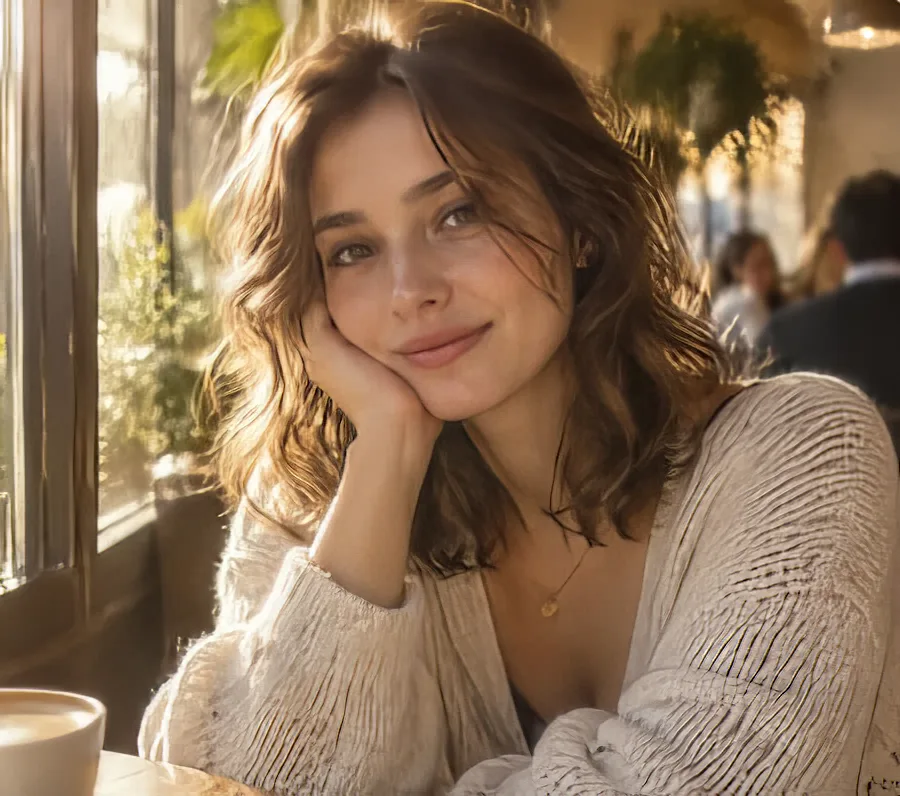
Input Sharpen
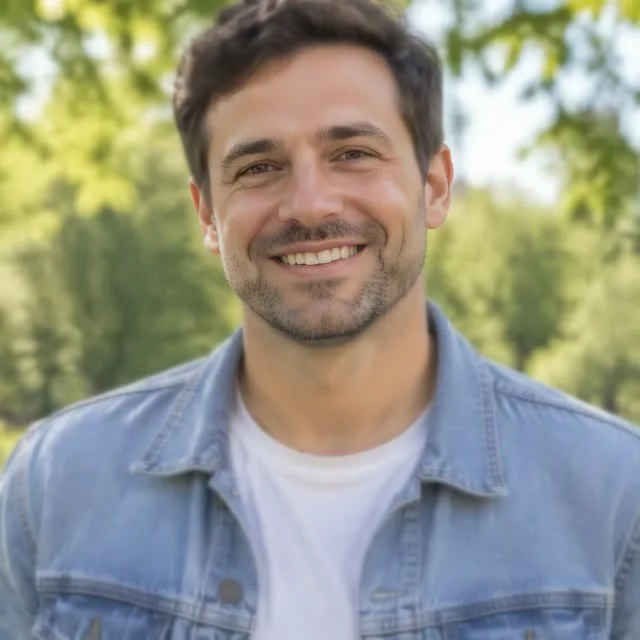
Input Face fix
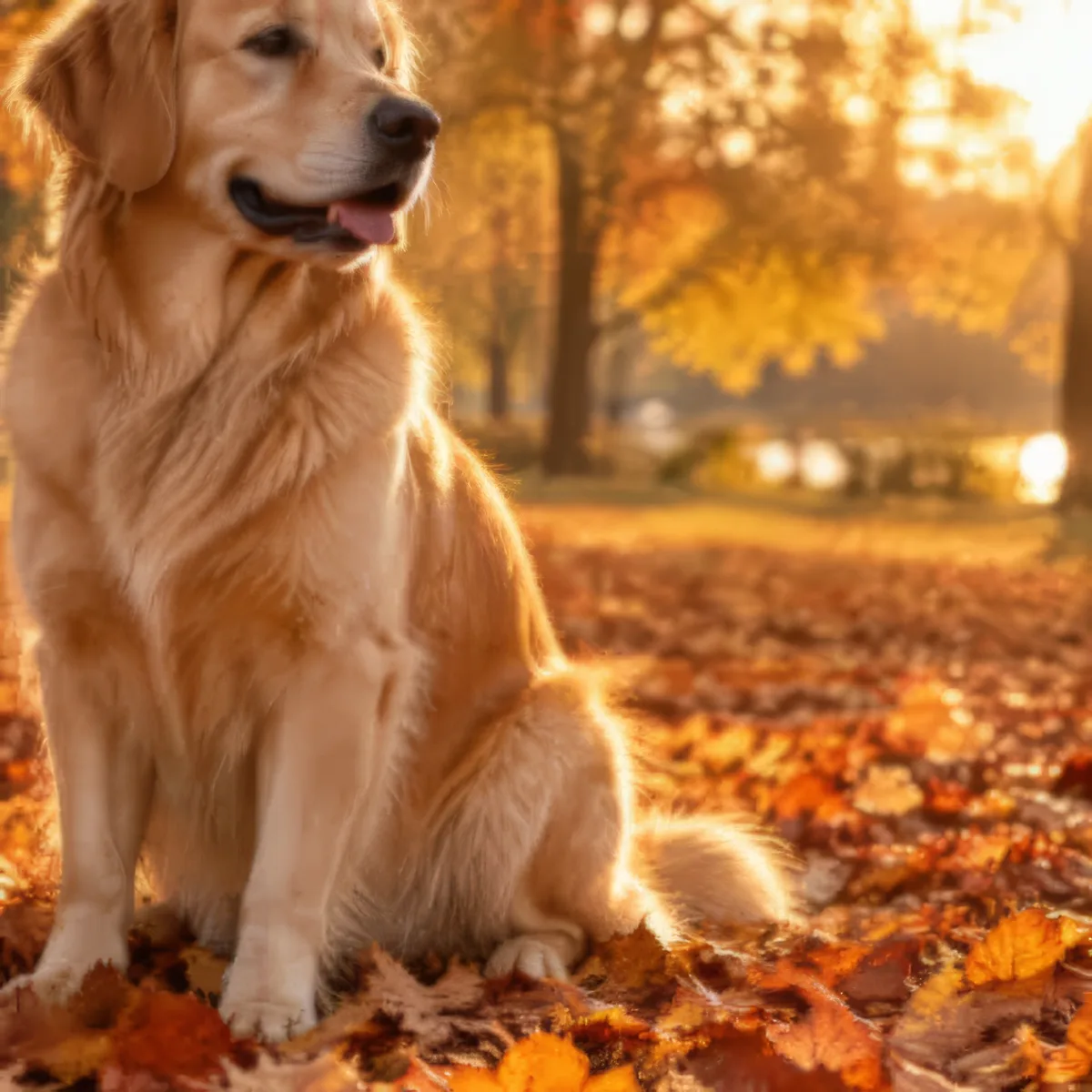
Input 4× Upscale
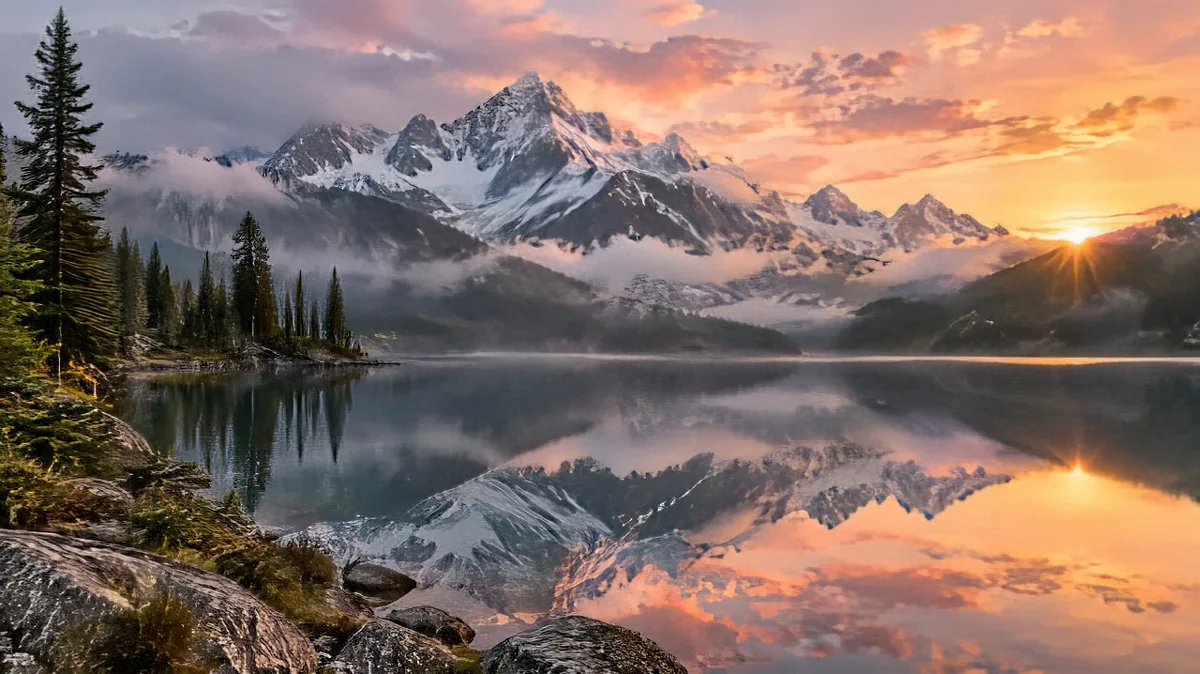
Input Sharpen
How to unblur an image in three steps
The short answer to how to unblur an image: give the AI photo enhancer the best copy of the photo you have, tell it what kind of problem you are fixing, and let it recover the detail it can.
Upload one blurry photo
Drop in one JPG, PNG or WebP up to 10 MB. Use the original file from your phone or camera when you have it. A screenshot, or a photo saved from a chat app, has already been compressed and holds less detail. Very large photos are scaled down automatically before processing, so you don't need to resize anything first.
Pick Sharpen, Face fix or 4× Upscale
Sharpen is selected by default and suits most soft or slightly out-of-focus shots. Choose Face fix when the face is the part that went soft, and 4× Upscale when the photo is small and you need a bigger file. There is no prompt and there are no sliders; the mode is the only choice you make.
Check the price, then start
You need a free account to make images. Sign-up gives you 30 credits that last 30 days, plus 5 more each day. The price for the mode you picked appears above the button. The sharper version comes back as a PNG you can download. Free results carry a watermark, and if a run fails, the credits come back.
Three ways to fix blurry photos
Photos turn out blurry for different reasons: a lens that missed focus, a face lost to compression, a file that was simply too small. That is why the tool gives you three modes instead of one strength slider. Each run works on one photo and returns one PNG.
Sharpen: clearer detail at the same size
Sharpen is the everyday mode to sharpen image quality in a soft, slightly out-of-focus or low-quality photo. It keeps the original width and height and, of the three modes, keeps faces closest to how they look in your photo. Start here for portraits, travel shots, landscapes and product photos that are almost right.
Face fix: for faces that went soft
Face fix restores blurry or low-quality faces and keeps the photo at the same size. It is the better pick for an old phone snap or a compressed profile picture where the face is what you care about. It can slightly smooth skin or change how makeup looks, so compare the result with the original before you share it.
4× Upscale: a bigger photo with fine detail
4× Upscale makes the photo four times wider and four times taller and generates fine detail to fill the new pixels. Use it for thumbnails, small images saved from old devices or low-resolution files you want to print or crop. Because that detail is generated, look closely at small text and fine patterns.
| Mode | Best for | Size of the result |
|---|---|---|
| Sharpen (default) | Soft or slightly out-of-focus shots; keeps faces closest to the original | Same as the original |
| Face fix | Blurry or low-quality faces | Same as the original |
| 4× Upscale | Small, low-resolution photos | 4× the width and 4× the height |
Very large photos are scaled down before processing: Sharpen and Face fix work on up to about 4 megapixels, and 4× Upscale on about 1 megapixel. Prices depend on the mode, so they are shown above the button rather than in this table.
What AI can unblur, and what it can't
An AI unblur image tool works with the information already in your photo. It can make soft edges crisp, clean up compression and bring back a face that is a little out of focus. It cannot invent detail that the camera never captured, and it will not pretend to.
- Heavy motion blur, where the subject is smeared across the frame, improves less.
- Tiny faces in a crowd or far from the camera have too few pixels to restore well.
- Extremely low-resolution photos get bigger and cleaner with 4× Upscale, but the fine detail is generated, not recovered.
- Torn, scratched or water-damaged prints need a retoucher; this tool does not repair physical damage.
How to make a photo less blurry before you upload
Better input gives a better result. Find the original file instead of a screenshot or a copy that went through a messaging app, since each of those compresses it again. If you have several shots of the same moment, start with the least blurry one. That is also the honest answer to how to fix blurry pictures: begin with the best copy you have, then pick the mode that matches the problem. If Face fix looks too smooth, run the photo again on Sharpen; each run is charged separately.
For any other change, such as a new background or a different style, use the image to image page.
Unblur image free to start, then bring it to life
Every new account gets sign-up credits, so you can unblur a few photos and judge the results before paying anything. Plans and credit packs are on the pricing page; a paid plan or credit pack also removes the watermark and adds a commercial license for images made while it is active.
A finished image has an Animate this image button. It sends the sharper photo to the video tool as the first frame, so you can turn it into a short clip with image to video AI.
Need a new portrait rather than a fix? The AI headshot generator turns one selfie into a professional headshot for LinkedIn or a resume.
Questions about unblurring photos
How to unblur an image online?
Upload the picture, keep Sharpen or switch to Face fix or 4× Upscale, check the price and start. You get a sharper PNG back, with no prompt to write and nothing to tune. Use the original file if you have it, because screenshots and photos sent through chat apps are compressed and hold less detail for the tool to work with.
Can I unblur photos for free?
You can start for free. Making images needs a free account, and sign-up gives you 30 credits that last 30 days, plus 5 credits each day. All three modes work on a free account. Free results carry a watermark and are for personal use; a paid plan or credit pack removes the watermark and adds a commercial license.
Which mode should I choose?
Sharpen fits most soft or slightly out-of-focus pictures: it keeps the original size and keeps faces closest to the original. Pick Face fix when a face is the blurry part, knowing it can slightly smooth skin or change how makeup looks. Pick 4× Upscale when the photo is small and you need it four times wider and taller.
Can it fix any blurry photo?
No. It improves what is in the photo but cannot invent detail that was never captured. Heavy motion blur, tiny faces in a crowd and extremely low-resolution files improve less, and it does not repair torn or damaged prints the way a retoucher does. Credits come back when a run fails, not when you dislike a result, so start with your clearest copy.
Will the face still look like the same person?
With Sharpen, faces stay closest to the original photo. Face fix rebuilds blurry faces more strongly, so it can slightly smooth skin or change the look of makeup. When likeness matters, try Sharpen first and compare the two. Results can vary from run to run, and each run is charged separately.
What file do I get back?
A PNG. Sharpen and Face fix keep the width and height of the photo they work on, and 4× Upscale makes it four times wider and taller. Very large photos are scaled down first, so the result can be smaller than a huge original. Free results carry a watermark; results made with paid access come without one.
What happens to my photo?
Your upload is used only to make your result and is sent to the model provider for that purpose. Uploads and results are not used for training. Free results are kept for 7 days and results made with paid access for 180 days, and you can delete them from your history at any time. Questions can go to [email protected].
Related tools
AI Image Upscaler
Upscale an image online with AI: upload one small photo or picture, pick 2K or 4K and get a larger, sharper PNG. No prompt to write. Start free with 30 sign-up credits.
Image to Image AI
Upload a photo and describe the change. This image to image AI restyles, swaps a background, or combines reference pictures. The credit price shows before you start.
Animate Photos with AI and Make Pictures Move
Animate a photo with AI: add natural motion, blinking, hair and camera movement to any picture, then download a short video. Free credits to try.
Image to Video AI
Turn any photo into a short AI video. Upload an image, describe the motion and pick a model, from Kling and Veo to Grok Imagine and Vidu. Start free with 30 credits.
Unblur your photo now
Upload one blurry photo, keep Sharpen or pick another mode, and check the price before you start. Use only photos you have the right to edit, and don't use the tool to identify people or to reveal faces that were blurred on purpose.