
Halloween 2026 · Zombie AI trend
AI Zombie Video Maker: Watch Yourself Turn Undead
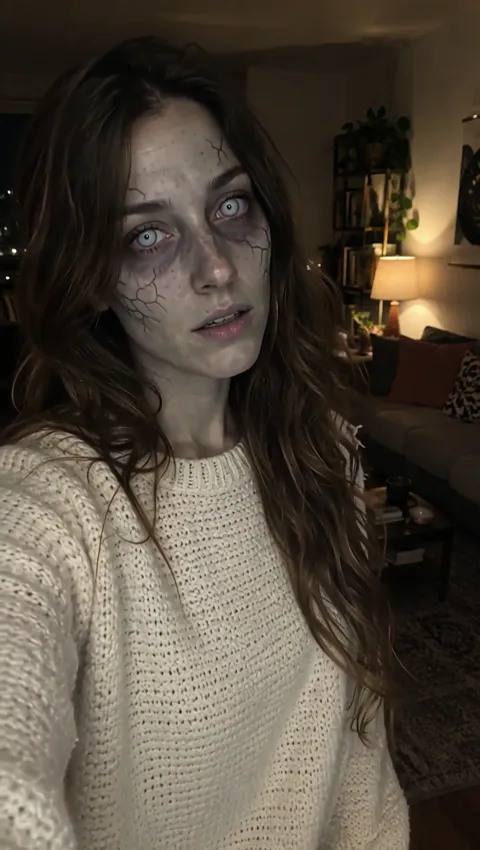
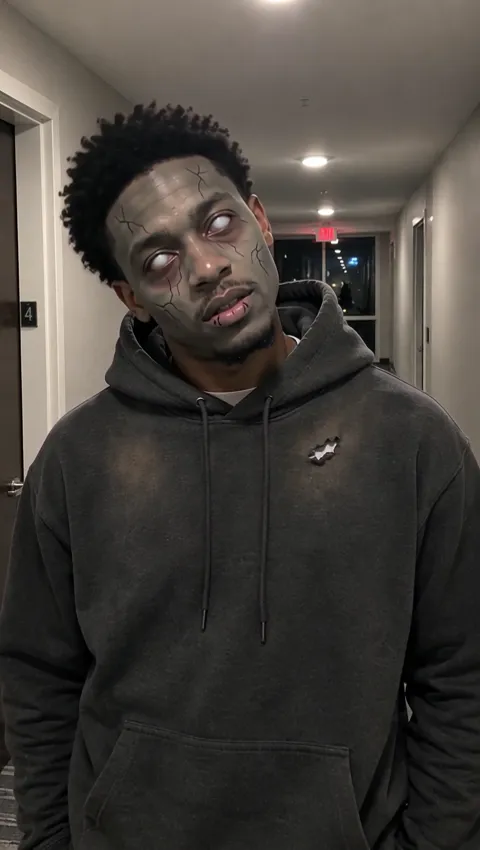
Start from one clear photo and this AI zombie video effect slowly turns the person into the walking dead: ashen skin, dark veins, milky eyes. Then they growl and lurch at the camera. Creepy, recognizable, and free of blood.
Upload a photo of yourself or of someone who agreed to be zombified. No celebrities.
Free video, one a day without an account · Seedance 1.0 Pro Fast · 480p · 5s
1 left today
 Still
StillWan 3.030 credits
 Still
StillWan 3.030 credits
 Wan 3.0
From Selfie to Zombie in Four Steps
Most zombie edits are a mask slapped over a face. This one is a slow change you can watch happen, and the person stays recognizable the whole way, which is exactly why friends replay it.
Choose a clear photo of one person
The transformation needs a face to work on, so pick a picture where the face is sharp, well lit and not covered by sunglasses, a hat brim or hands. Head-and-shoulders or waist-up framing shows the skin, the eyes and the clothes changing. One person per photo.
Add a tweak, if you want to
The change itself is written into the preset: skin, veins, eyes, torn clothes, then the growl and the lurch. The details box is optional, accepts up to 500 characters, and suits small tweaks, for example a slower change, a louder growl or a head tilt at the end; a new backdrop or props may not show up. Leave it blank and the effect still runs in full.
See the cost, then generate
Unless you switch, the clip is made by Wan 3.0 at 480p, 5 seconds long, sound included, for about 30 credits. Any other model in the menu can carry the same zombie prompt, and the button updates its number. A run that fails costs nothing, because the credits are refunded.
Save it and scare your group chat
Free clips are watermarked. To download clean files at higher resolutions on models that support them, use a plan or credit pack.
Join the Zombie AI Trend
The zombie AI trend on TikTok is simple: a normal photo, a slow decay, and a jump toward the lens at the end. It works for almost any personal photo, which is why people keep making new ones every October.
- The before-and-after. Show the original selfie for a second, then cut to the clip. The contrast is the payoff.
- Squad zombies. Make one clip per friend (everyone agrees first) and post them as a series, each lurching at the camera in turn.
- Costume backup plan. No time for makeup this year? Post a zombie version of yourself instead.
- Halloween party invite. A host turning into a zombie is a memorable way to announce the date.
- Office or club Halloween posts. With everyone's consent, a team photo split into single portraits makes a funny October post.
Want a monster that shows up behind you rather than one you become? The AI demon effect raises a winged figure from a golden magic circle. For a quieter scare, the AI ghost prank adds a pale ghost behind a smiling face. Browse all three seasonal effects together under AI Halloween video.
Zombie Filter vs. Zombie Video: What Changes
A zombie filter in a camera app tints the skin and adds a few scars to a still frame. This effect is closer to a short horror scene: the transformation unfolds over time, then the zombie moves. Here is the full look, and what you can steer.
| Part of the effect | What happens | Can you change it? |
|---|---|---|
| Skin | Turns ashen grey-green | No, it's part of the preset |
| Veins and eyes | Dark veins appear, eyes go milky | No |
| Clothes | Become dusty and torn | No |
| Ending | A growl, then a lurch toward the camera | No |
| Gore | None; no blood, no wounds | No, it stays creepy rather than gory |
| Setting and background | Kept from your photo | Pick another photo; details suit pace and growl, not new places |
Tips for a better transformation:
- Faces seen straight on or at a slight angle give the effect the most to work with.
- Light from the front shows the skin and eye changes clearly; deep shadows hide them.
- Leave some space in front of the person in the frame, so the lurch toward the camera has room.
- Plain or dark backgrounds keep the focus on the face. A cluttered party background competes with it.
- Cartoon avatars or stylized drawings are untested here, so start with a real photo.
If you'd rather direct the whole scene yourself, with your own prompt and model, open the image to video AI generator. To keep a photo calm and just bring it to life, animate a photo instead. Both show the price before you generate, just like the zombie.
Zombify With Permission
Turning someone into the undead is funny when they're in on it, and unkind when they're not. A few rules:
- Yourself, or someone who said yes. Only upload photos of people who agreed to be turned into a zombie. For kids, a parent or guardian decides, and a scary effect may not suit young children at all.
- No public figures. Leave celebrities, politicians and influencers out.
- Not for mockery. Don't make clips to humiliate a classmate, coworker or ex.
- Mark it as AI. Captions or platform labels should make clear the video is AI-generated.
What you upload here never becomes training data for AI models. The company that runs the video model sees it only while making your clip.
Zombie Video FAQ
Can I make an AI zombie video for free?
Yes, within limits. Guests can make a single free clip each day without an account. That one is rendered by the budget Seedance 1.0 Pro Fast model, 480p and 5 seconds, carrying a watermark and no audio, so there's no growl. Signing up adds a 30-credit welcome balance usable for 30 days, around the cost of one default zombie clip with sound, and 5 more credits arrive each day.
Is the zombie effect gory?
No. It is designed to be creepy rather than gory: ashen grey-green skin, dark veins, milky eyes and torn, dusty clothes, but no blood and no wounds. That keeps the clips easier to share on social platforms and with friends who don't like splatter.
Will people still recognize me as a zombie?
Yes, that is the point of the effect. The transformation keeps the person's features, so viewers can still tell who it is after the skin and eyes change. A sharp, front-facing photo with even lighting helps the most, because the model has more of the face to preserve.
Can I turn into a different monster instead?
Not with this preset, which always makes a zombie. The demon page summons a horned, winged demon behind you, and the ghost page brings in a pale ghost. For a werewolf, a vampire or any other AI monster you have in mind, write your own prompt on the image to video page and choose a model there.
Does the zombie video have sound?
On the default Wan 3.0 model, yes: the growl and the sound effects are generated with the picture. Silent models, such as Seedance 1.0 Pro Fast for the free guest clip, give you the same transformation without audio. What each subscription and top-up costs is on our pricing page.
More ways to animate a photo
Image to Video AI
Turn any photo into a short AI video. Upload an image, describe the motion and pick Kling, Veo, Hailuo, Seedance or Wan. Start free with 30 credits.
Animate Photos with AI and Make Pictures Move
Animate a photo with AI: add natural motion, blinking, hair and camera movement to any picture, then download a short video. Free credits to try.
AI Halloween Video Maker
Make an AI Halloween video from one photo: a ghost behind you, a summoned demon, or your own zombie transformation, with sound. Try one free each day.
AI Demon Summoning
AI demon effect for Halloween: a golden magic circle ignites, and a horned, winged demon rises behind the person in your photo. 8-second clip with sound.
Ready to Rise?
Upload a clear photo, add a louder growl if you like, and make your AI zombie video before October 31.